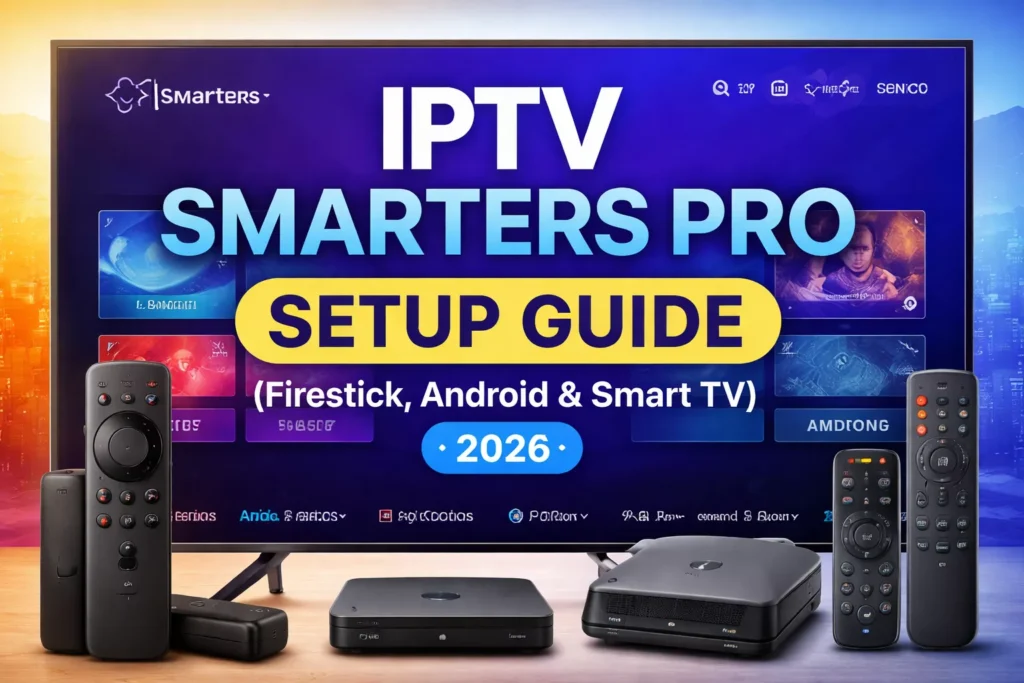
IPTV Smarters Pro is one of the most popular IPTV players available today. It allows users to stream live TV, movies and series using credentials provided by their IPTV service.
In this guide, you will learn how to install IPTV Smarters Pro on Firestick, Android devices and Smart TVs. In addition, we will explain how to log in using Xtream Codes or an M3U playlist.
If you are setting up IPTV for the first time, follow our How to Setup IPTV on Firestick (Step-by-Step Guide).
What You Need Before Setup
Before installing IPTV Smarters Pro, make sure you have:
An active IPTV subscription
Login credentials from your provider:
Xtream Codes API
or M3U playlist URL
A compatible device:
Firestick
Android TV / Google TV
Android phone or tablet
Some Smart TVs
Most providers send login information by email after purchase.
How to Install IPTV Smarters Pro on Firestick
IPTV Smarters works well on Firestick, but some users prefer alternative players. See our Best IPTV Player for Firestick (Free & Paid Apps Compared).
However, firestick does not allow direct installation from the Amazon App Store in some regions, so installation is usually done using the Downloader app.
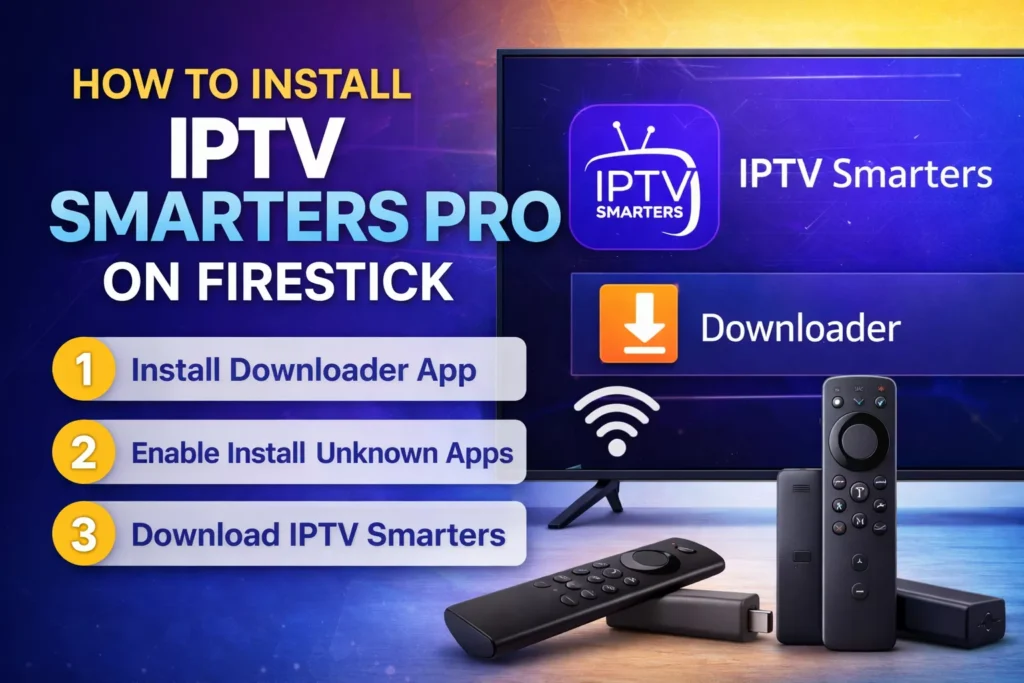
Step 1 – Install Downloader
Open Find → Search on Firestick
Search for Downloader
Install the app
Step 2 – Enable Unknown Apps
Go to Settings
Select My Fire TV
Open Developer Options
Enable Install Unknown Apps
Turn it on for Downloader
Step 3 – Download IPTV Smarters
Open Downloader
Enter the download URL provided by the IPTV Smarters website or app mirror
Download and install the APK
Launch the application
After installation, the IPTV Smarters icon appears in your apps list.
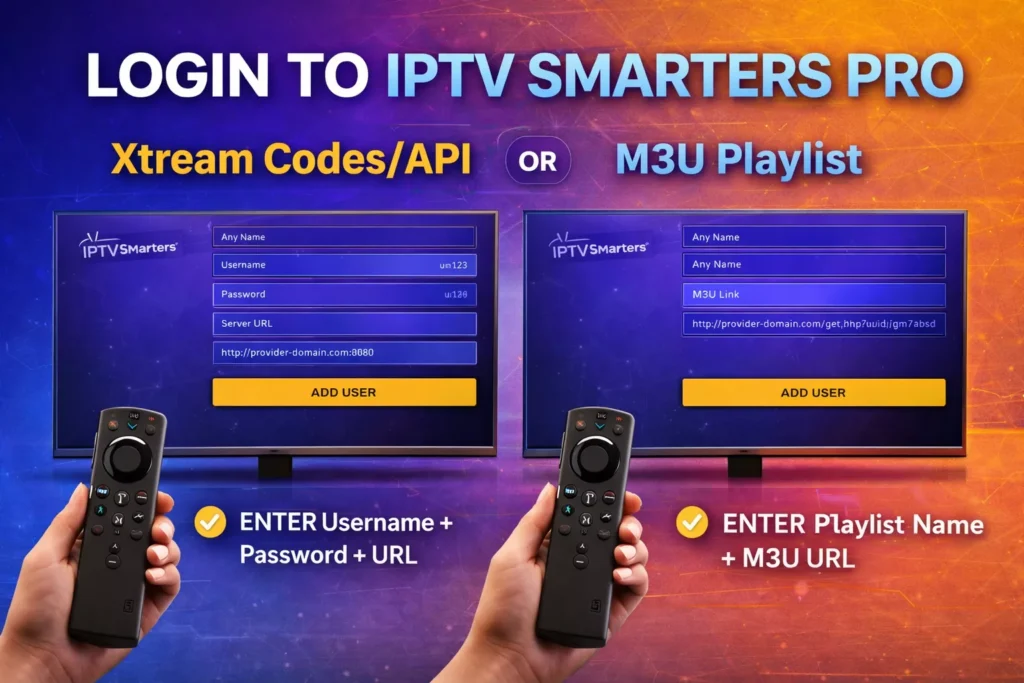
Login to IPTV Smarters Pro
When opening the app for the first time you will see multiple login options.
The most common method is Xtream Codes API.
Method 1 – Login with Xtream Codes (Recommended)
First, enter the following information provided by your IPTV provider:
Username
Password
Server URL
Press Add User.
As a result, the app will automatically load:
Live TV channels
Movies
TV series
EPG (TV guide)
Method 2 – Login with M3U Playlist
Some providers send an M3U playlist link instead.
Steps:
Choose Login with Playlist or File URL
Enter:
Playlist name
M3U URL
Click Add User
Channels will then load into the interface.
IPTV Smarters Pro Best Settings
Optimizing settings can improve performance and reduce buffering.
Change Video Player
Navigate to: Settings → Player Selection
Recommended player:
ExoPlayer
It generally provides better compatibility on Firestick.
Enable Hardware Acceleration
Turn this ON for smoother playback.
Update EPG Automatically
This keeps the TV guide synchronized.
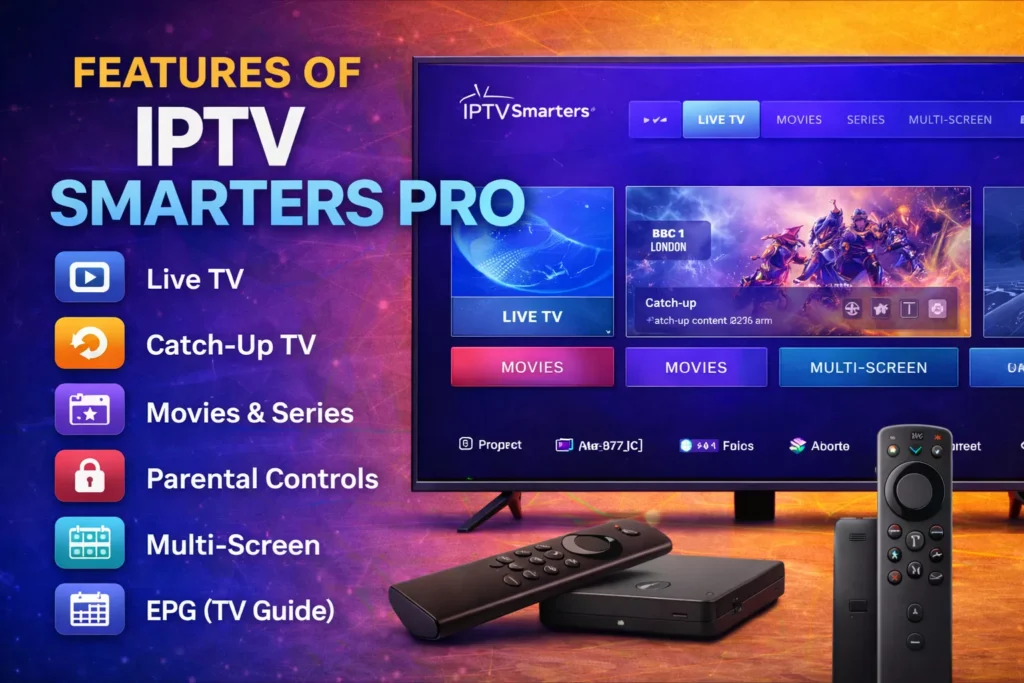
Features of IPTV Smarters Pro
The application includes several advanced IPTV features:
Live TV streaming
Movies and series library
Electronic Program Guide (EPG)
Catch-up TV
Multi-screen viewing
Parental controls
External player support
Some providers also enable recording and time-shift.
Common IPTV Smarters Pro Issues
Channels Not Loading
Possible causes:
Expired subscription
Incorrect login credentials
Server downtime
Solution:
Verify credentials with your IPTV provider.
Buffering During Playback
Possible reasons:
Slow internet connection
Overloaded IPTV server
Device storage issues
Solutions:
Restart the device
Clear app cache
Use Ethernet instead of WiFi
Try a different player (VLC or MX Player)
If you experience constant lag or interruptions, read our full guide on IPTV Buffering on Firestick: How to Fix It.
EPG Not Showing
Fix: Settings → EPG → Refresh EPG
You can also clear cache and reload the playlist.
In some cases the issue comes from unstable providers. You can check reliable options in our Best IPTV for Firestick (Reliable & Stable – 2026) guide.
Devices Compatible with IPTV Smarters Pro
The app works on multiple platforms:
Amazon Firestick
Android TV / Google TV
Android smartphones
Windows PC
macOS
Some Samsung and LG Smart TVs (via IPTV Smarters Player versions)
Final Notes
IPTV Smarters Pro is a media player, not a content provider. You must have an IPTV subscription from a service that supplies:
channels
movies
series
login credentials
Once configured correctly, it becomes a powerful interface for streaming IPTV content across multiple devices.