How to Setup IPTV on Firestick (Step-by-Step Guide – 2026)

Streaming TV through IPTV on Amazon Firestick is one of the most popular ways to watch live TV, sports, movies, and series on one device. If you’re new to IPTV or setting it up for the first time, this guide walks you through the entire process step by step, even if you’re not tech-savvy.

By the end of this article, your IPTV service will be fully working on your Firestick.

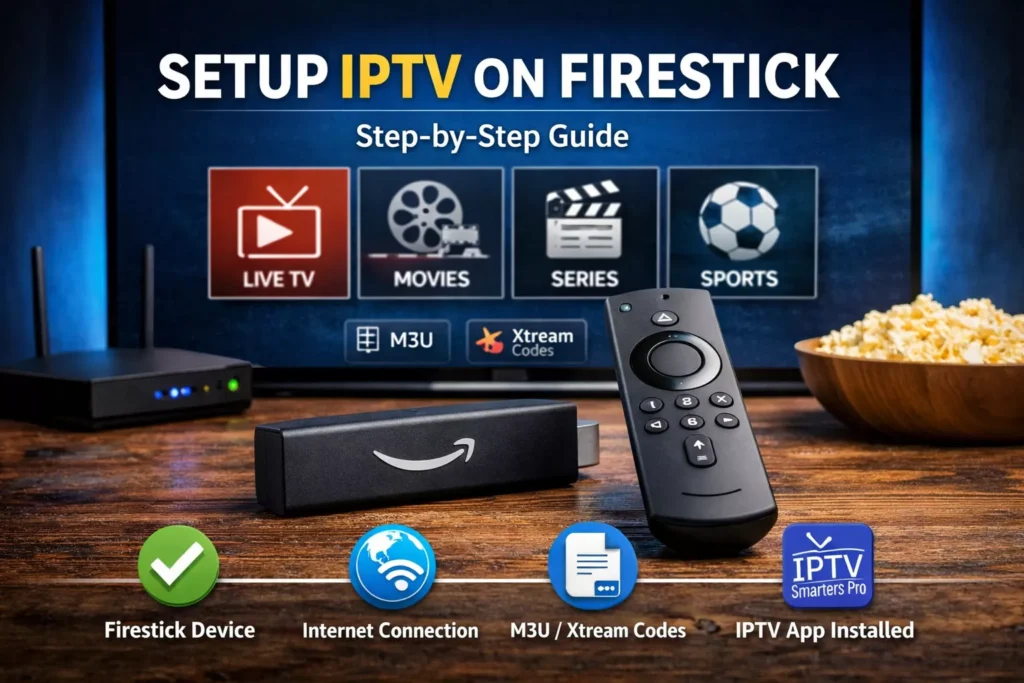
What You Need Before Setting Up IPTV on Firestick

Before starting, make sure you have:

  • An Amazon Firestick connected to your TV

  • A stable internet connection

  • An IPTV subscription (M3U link or Xtream Codes details)

  • An IPTV player app (we’ll show you which one to use)

IPTV players are apps only. The subscription itself is provided separately by your IPTV service.

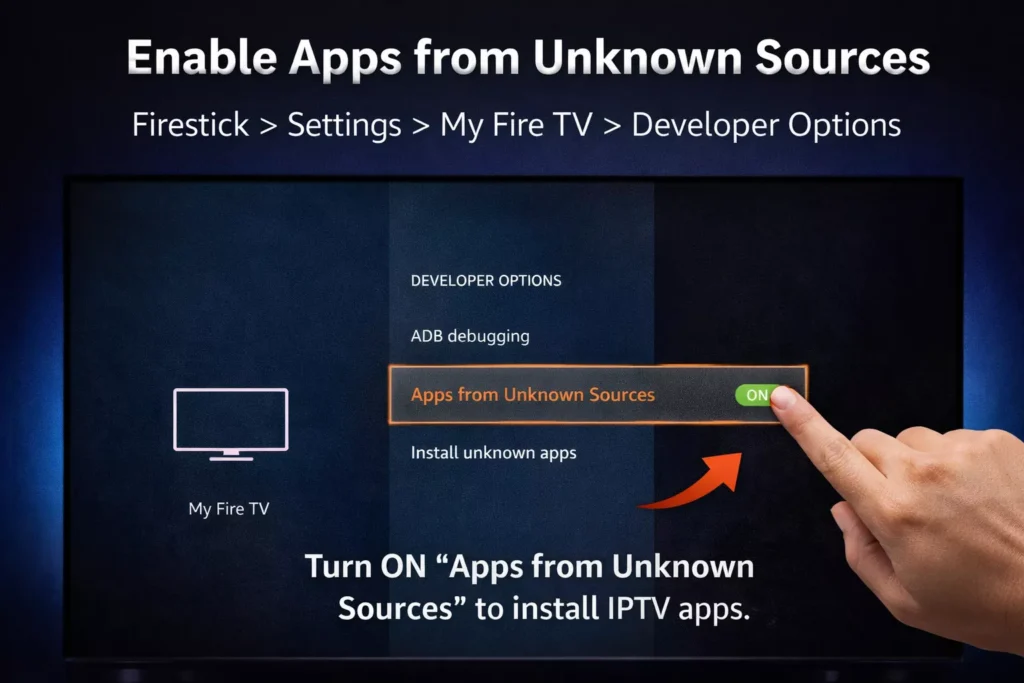
Step 1: Enable Apps from Unknown Sources on Firestick

Most IPTV apps are not available directly on the Amazon App Store. You’ll need to allow installations from unknown sources.

  1. From the Firestick home screen, go to Settings

  2. Select My Fire TV

  3. Click Developer Options

  4. Enable:

    • ADB Debugging

    • Apps from Unknown Sources

This allows you to install IPTV apps safely.

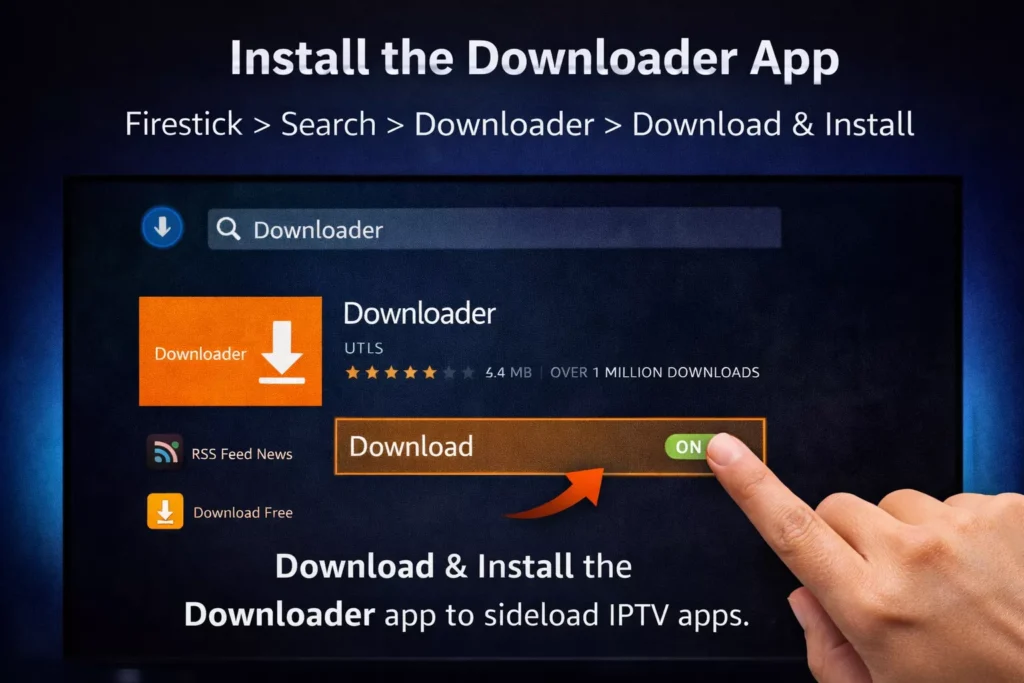
Step 2: Install the Downloader App

Downloader is the easiest way to install IPTV apps on Firestick.

  1. Go to the Amazon App Store

  2. Search for Downloader

  3. Download and install it

  4. Open Downloader and allow permissions

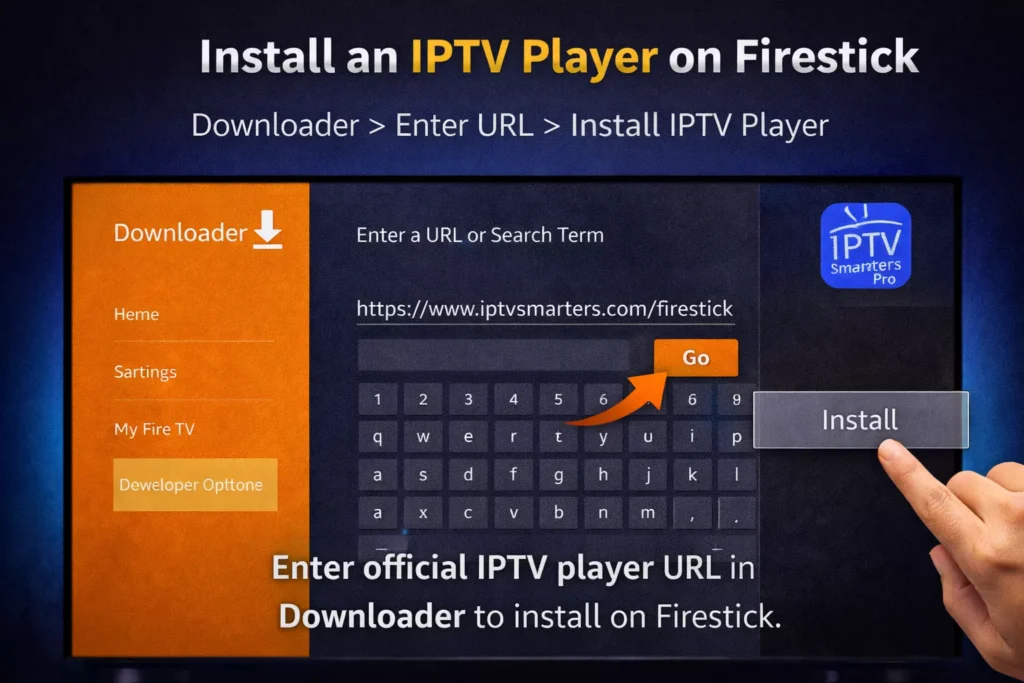
Step 3: Install an IPTV Player on Firestick

One of the most commonly used IPTV apps is IPTV Smarters (others work similarly).

  1. Open Downloader

  2. Enter the official download URL provided by the IPTV player

  3. Click Download

  4. Install the app when prompted

Once installed, open the IPTV app.

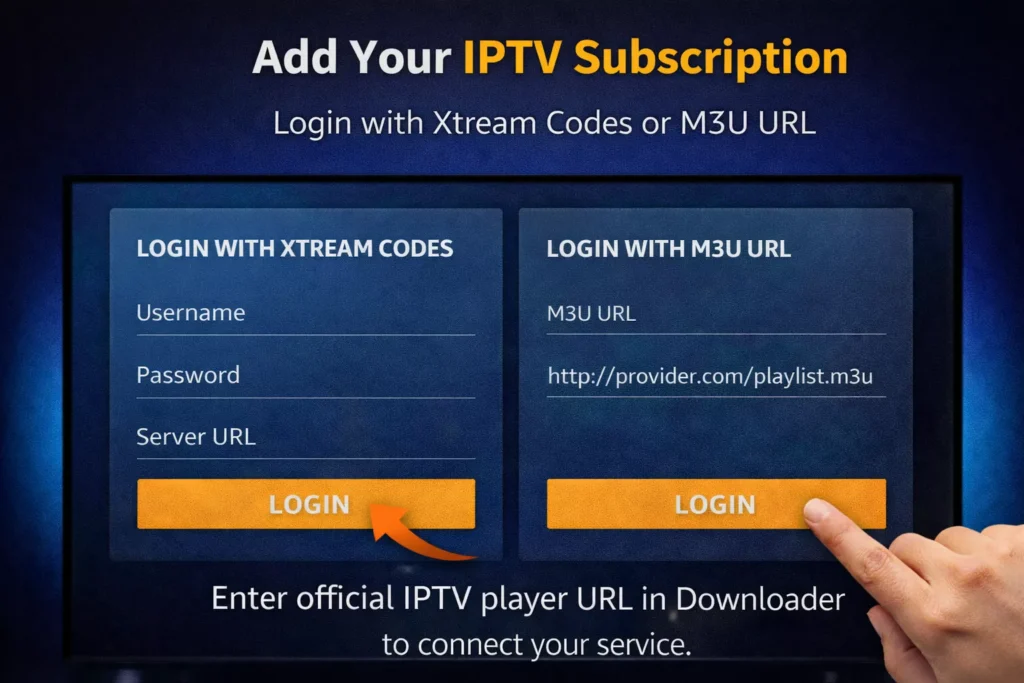
Step 4: Add Your IPTV Subscription

When you open the IPTV app for the first time, you’ll usually see two main login options:

Option 1: Login with Xtream Codes (Recommended)

You’ll need:

  • Username

  • Password

  • Server URL

Enter the details provided by your IPTV service, then click Login.

Option 2: Login with M3U URL

  • Choose Load Your Playlist or File/URL

  • Paste your M3U link

  • Click Add Playlist

The app will load channels automatically.

Step 5: Wait for Channels to Load

After login:

  • Channels, movies, and series will sync

  • This may take a few seconds to a few minutes depending on your internet speed

  • Once loaded, you’re ready to watch

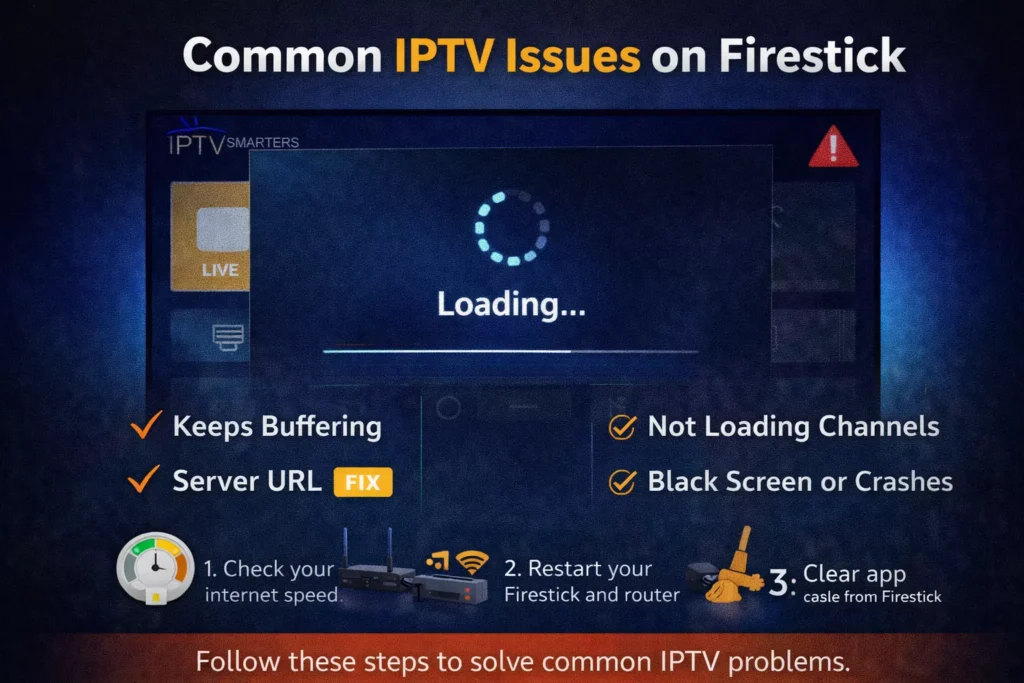
Common IPTV Issues on Firestick (And Fixes)

IPTV Keeps Buffering

  • Check your internet speed

  • Restart Firestick and router

  • Try a wired connection or stronger Wi-Fi signal

IPTV App Not Loading Channels

  • Double-check login details

  • Restart the IPTV app

  • Clear app cache from Firestick settings

Black Screen or App Crash

  • Update the IPTV app

  • Restart Firestick

  • Reinstall the app if needed

Best IPTV Player Settings for Firestick (Optional)

To improve performance:

  • Use hardware decoding

  • Set buffer size to medium

  • Close background apps on Firestick

These settings help reduce freezing and lag.

Is IPTV Legal on Firestick?

Firestick itself is completely legal. IPTV legality depends on the content provider and licensing. Always use IPTV services that clearly explain what they offer and how subscriptions work.

Final Thoughts

Setting up IPTV on Firestick is straightforward once you know the steps. With the right IPTV player and a reliable subscription, Firestick becomes a powerful all-in-one streaming device.

If you’re looking for a stable IPTV subscription that works smoothly on Firestick, make sure to choose a service that offers:

  • Fast activation

  • Clear setup instructions

  • Reliable customer support

👉 You can learn more on our website or continue with our guide on choosing the best IPTV for Firestick.